To add a drawn signature to a Google Forms workflow, install Zeto Sign, open your form, and click Sync Form. Share the generated ZetoSign link so respondents can answer your questions and draw their signature on the same page.
Respondents sign on a Zetomation-hosted page created from your Google Form. ZetoSign does not insert a drawing pad into the original Google Forms response page. Use the generated signing link whenever you need a signature.
This guide uses a simple equipment receipt. By the end, you will have checked one completed response in ZetoSign and, if you use a linked spreadsheet, its matching Google Sheets row.
Prepare your Google Form
Start with a short form that has one clear purpose. For an equipment receipt, ask for the recipient’s name, asset ID, handover date, and any condition notes. Add a required acknowledgement question so the person can confirm what they received.
Google’s documented question types do not include a drawn-signature field. ZetoSign supplies that part of the experience through its hosted page.
- Use supported fields such as short answers, paragraphs, choices, checkboxes, and date/time questions.
- Remove or replace file-upload questions before syncing. A file upload stops Sync; it is not silently skipped.
- Review forms that rely on section logic, images, or quiz points. Those features are not migrated to the hosted page.
- If you want a response spreadsheet, choose its destination using the source form’s Responses controls.
Keep the acknowledgement in a supported question or the form description, then check how it appears after syncing. A short test form makes missing information easier to spot.
Install and open Zeto Sign
- Install Zeto Sign from Google Workspace Marketplace using the Google account that will publish the form.
- Open the source form in the Google Forms editor.
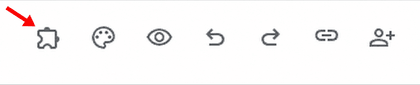
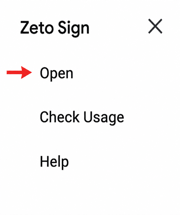
- Choose the puzzle-shaped Add-ons icon, select Zeto Sign, then choose Open.
If your organization restricts Marketplace apps, your Workspace administrator may need to allow the installation. Use the publisher account consistently when opening the form and reviewing responses.
Sync and review the hosted signing page
Click Sync Form. ZetoSign reads the supported questions and returns a hosted signing link. Keep the internal Zeto Signature Link question in your source form; it carries the signature-image URL into the Google Forms response workflow and is hidden on the hosted page.
After syncing, open the original Google Form response URL once, as described in the setup guide, to check its response connection. Then use Take Signatures in the add-on to open or copy the hosted link.
Preview that hosted page as a respondent. Check every question, required field, and acknowledgement. Re-sync whenever you change the source questions, and review the updated page before collecting more responses.
Share the signing link and test on a phone
Send the generated ZetoSign link with a short instruction: “Please check the asset details, note any existing damage, and sign to acknowledge receipt.” Include a contact for corrections so someone can resolve inaccurate information before signing.
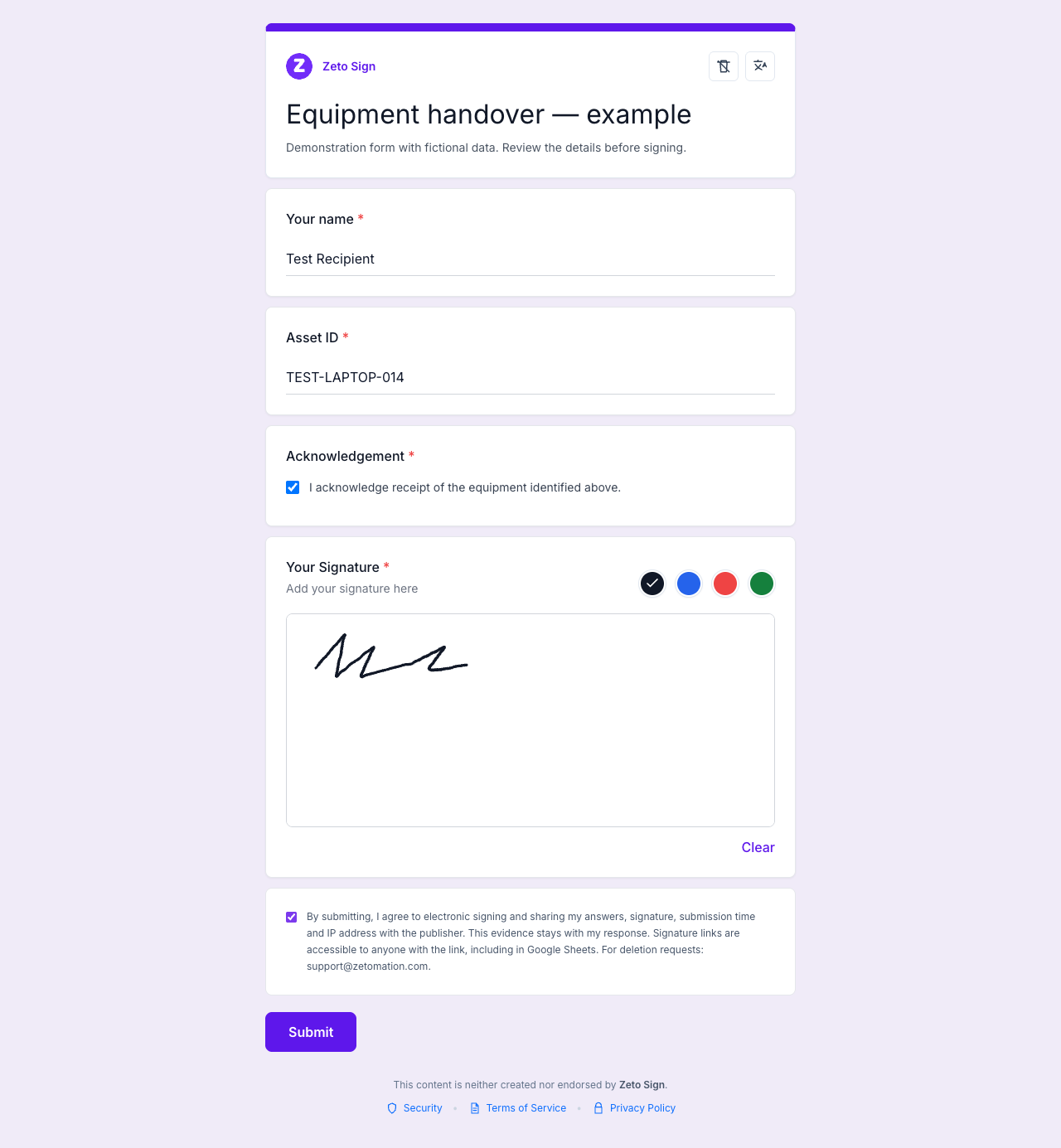
Open the link on a phone as well as a desktop. Check that long asset IDs are readable, the acknowledgement is easy to find, and the signature area gives the respondent enough room to draw. Respondents use the signing page without signing in to the owner dashboard.
Submit one test response and check both records
Enter clearly labelled demonstration information, such as Test Recipient and TEST-LAPTOP-014. Draw a sample signature, review the signing acknowledgement, and submit.
- Choose See Responses in the add-on, or open your owner dashboard with the publisher account.
- Find the matching asset ID and check the answers and signature together.
- If you linked a Sheet, locate the matching row and its Zeto Signature Link value.
ZetoSign saves the hosted submission and separately attempts to forward it to Google Forms. A hosted response can exist even when the Sheet row is missing. Check the hosted record before asking someone to sign again. The Google Sheets signature tracking guide explains how to reconcile the two.
Fix common setup problems
- No signature area: check that you shared the ZetoSign link rather than the native Google Forms response URL.
- Sync stops: remove unsupported file-upload questions and sync successfully before using an older hosted link.
- Questions are out of date: re-sync the source form and reload the hosted page.
- Missing Sheet row: check the destination spreadsheet, response acceptance, and account restrictions. Confirm the original hosted response first.
For unresolved problems, contact support with the form reference and a description of what failed. Keep respondent answers and signature images out of public support posts.
Questions before you share your form
Is the signature stored inside a Google Sheets cell?
The forwarded response contains a link to a signature image. It is not automatically embedded as a drawing inside the cell.
Who can open a signature-image link?
Anyone who has that image URL can access it. Restricting a response spreadsheet does not make the image URL private. Keep signature links out of public sheets, reports, and screenshots.
Does drawing a signature verify someone’s identity?
A drawn signature alone does not verify identity. ZetoSign collects an electronic signature; it does not issue a certificate-backed digital signature. Choose a process appropriate to the information and acknowledgement you need.
Can I download the signed response?
The publisher can download response and evidence PDFs from the dashboard when a submission-time snapshot is available. Historical responses without a snapshot do not have these PDFs. Notification emails do not include PDF attachments.
Start with one small form and a complete test. Explore ZetoSign, or use the equipment handover questions as your first example.
Related guides
Written by the Zetomation team, which builds and maintains Zeto Sign and the Zetomation Google Workspace add-ons.