You can collect Google Forms answers and a drawn signature with ZetoSign, then forward the answers and signature-image link to the form’s connected Google Sheet. The useful result is a response row that connects the person, the task, and their signature.
The signature is represented by a URL in the Zeto Signature Link column. This guide shows how to set up a response register, verify one submission, and investigate missing rows without losing track of responses already saved in ZetoSign.
Give every response a useful reference
Choose a reference your team can recognize later. For equipment, use an asset ID; for policy acknowledgements, use an employee reference and policy version. A name alone is rarely enough to distinguish repeated submissions.
| Field | Example | Purpose |
|---|---|---|
| Recipient | Test Recipient | Person completing the receipt |
| Asset ID | TEST-LAPTOP-014 | Reference in the equipment register |
| Handover date | 3 October 2026 | Reported date of the handover |
| Condition notes | Small mark on lid | Observations before signing |
| Acknowledgement | Receipt confirmed | Answer to the receipt question |
| Zeto Signature Link | Generated signature-image URL | Signature associated with this response |
These are suggested fields for your form. ZetoSign does not automatically create an equipment register or match people against an employee directory.
Connect the Google Form to a spreadsheet
- Open the source Google Form and select Responses.
- Use the spreadsheet controls to select a response destination.
- Create a new spreadsheet or select an existing one, then open the resulting response tab.
Google’s response destination instructions describe the current controls. Confirm the spreadsheet you open is the one connected to this particular form, especially if you have copied an older form.
Keep the incoming response tab intact. Put review statuses, follow-up notes, or inventory decisions in a separate tracker keyed by the response reference. This keeps what the respondent submitted distinct from what your team decided later.
Sync ZetoSign and use the hosted link
Follow the signature setup tutorial to install and open Zeto Sign. Click Sync Form, retain the internal Zeto Signature Link question, and open the original Google Form response URL once as directed in the product guide.
Use Take Signatures to share the generated hosted page. The original Google Forms response link does not provide ZetoSign’s drawn-signature area. If you change the source questions, sync and inspect the hosted form again.
Verify one response from beginning to end
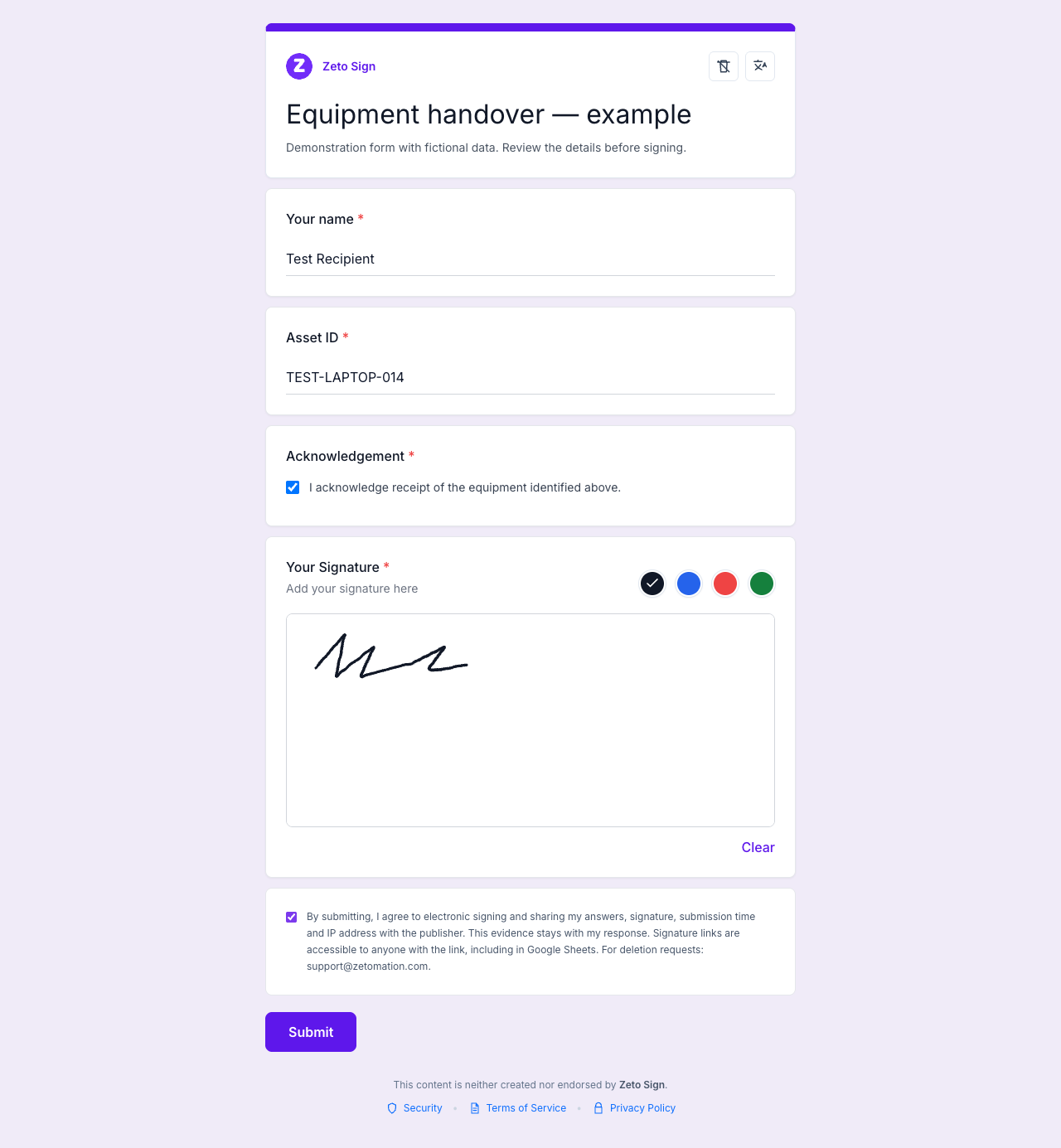
Submit a test using TEST-LAPTOP-014 or another unmistakable sample reference. Avoid testing with a real employee’s signature or customer information.
- Check the hosted record. Find the submission using See Responses in the add-on or the owner dashboard. Confirm the reference, answers, and signature.
- Check the spreadsheet. Open the source form’s linked Sheet and find the matching reference. Compare the submitted values rather than relying on row counts.
- Check the signature link. Open the URL from the matching row and confirm that it belongs to the test response.
Saving to ZetoSign and forwarding to Google Forms are separate operations. A successful hosted submission does not guarantee that Google accepted the forwarded response. Form settings, permissions, and Google availability can affect that second step.
During rollout, assign someone to compare the hosted records and the Sheet regularly. Record any unmatched references and their resolution in the review tracker.
Troubleshoot a missing row or signature link
| What you see | What to check |
|---|---|
| Hosted response exists; Sheet row is missing | Verify the linked spreadsheet, form response acceptance, and Google account restrictions. Open the native response URL once after Sync. |
| Signature-link column is missing | Check the internal Zeto Signature Link question. Re-sync if it was removed, and inspect the updated response columns. |
| Hosted questions are out of date | Sync the source form again and reload the hosted link. |
| Several rows share the same reference | Compare the hosted submissions and timestamps; investigate whether the person submitted more than once. |
| Neither record can be found | Check the form reference and any submission error before asking for a new response. |
After fixing settings, make a new clearly labelled test submission. Re-syncing the questions does not establish that an earlier missing Sheet row was recovered. Check the earlier hosted record separately, and contact Zetomation support if forwarding still fails.
Avoid repeatedly asking a person to sign before checking whether their first response already exists. That can leave several records for one event and make reconciliation harder.
Share the register carefully
Share the Sheet only with people who need its contents. Signature-image links are accessible to anyone who has the URL, even when the spreadsheet itself has restricted access. Keep those links out of published spreadsheets, public dashboards, and example screenshots.
Use the owner dashboard when you need to review available response details or download a response and evidence PDF. PDF availability depends on whether the response has a submission-time snapshot; the Sheet itself is an operational tracking view.
Common questions
Will the signature automatically appear as an image in the cell?
No. The normal response value is a signature-image URL. Keep the link associated with its original row, even if your team creates a separate display view.
Does an empty Sheet mean nobody signed?
Check the hosted responses first. ZetoSign can retain a submission even when forwarding to Google Forms fails.
Can the same form collect repeated handovers?
Yes. Include a reference and date that identify each handover. Test again after changing the form or response destination.
Will ZetoSign remind people who have not responded?
The register and follow-up process described here are managed by your team. This workflow does not add automatic reminders or roster reconciliation to ZetoSign.
Begin with one form, one test response, and a matching row. Explore ZetoSign to collect answers and signature links in your existing Google Forms workflow.
Related guides
Written by the Zetomation team, which builds and maintains Zeto Sign and the Zetomation Google Workspace add-ons.