A shareable signing page
Sync your Google Form and share a Zetomation-hosted link. Respondents answer your questions and draw a signature in the same flow.
Zetomation · Zeto Sign
Keep the form you know. Add a shareable signing page, collect drawn signatures, and bring your responses together in an owner dashboard—with PDF downloads when you need them.
Already installed? Sign in with the Google account that published your form.
Built around your form
Use Zeto Sign for policy acknowledgements, equipment handoffs, onboarding forms and other workflows that need answers and a drawn signature together.
Respondents use the shared signing link. Publishers use the add-on or website dashboard to review what was submitted. Website sign-in does not add Google Forms permissions or resend welcome emails.
Read the setup guide →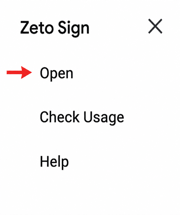
Sync your Google Form and share a Zetomation-hosted link. Respondents answer your questions and draw a signature in the same flow.
Zeto Sign saves hosted responses and forwards them to the original Google Form. Your linked Sheet can receive the answers and signature-image link. Google Forms settings and availability can affect forwarding.
Sign in with the Google account that published the form. Browse your forms, search and filter responses, view signatures, and choose which answer columns to show.
For responses with a submission-time snapshot, download a Signed response PDF and a Signing evidence PDF from the dashboard. PDFs are generated when requested.
New forms start with owner notifications on and respondent confirmations off. Change each setting independently. Emails contain no PDF attachments, answers or signature images; sending limits apply.
Open a response to review captured answers and recorded evidence events. Export a date range to CSV, with up to 5,000 rows per request.
You can open your dashboard directly from this website or choose Download PDF in Dashboard in the add-on’s See Responses window.
Sign in with GoogleInstall Zeto Sign from Google Workspace Marketplace, then open it from the Add-ons menu inside your Google Form.
Click Sync Form using the publisher account. Keep the Zeto Signature Link field in your form, and re-sync whenever you change questions.
Share the Zeto Sign link—not just the native Google Forms link—to collect answers and a drawn signature.
Use See Responses in the add-on, or sign in on this website with the publisher account to review responses and download available PDFs.
Quick start
After installing the add-on, start inside Google Forms. Follow the two highlighted controls below to launch the add-on.

In your Google Form, click the puzzle-shaped Add-ons icon in the top toolbar.
Select Zeto Sign, then Open to launch the add-on.
After the add-on opens: Click Sync Form, review the hosted form, and share its signing link. Follow the setup guide to check your native Google Forms and linked Sheets connection.
New evidence-enabled responses capture the form questions, answers, signature reference, submission time, observed IP and signing acknowledgement. Evidence is retained with the response and shared with the publisher. IP addresses and self-reported email addresses are not proof of identity.
The Signed response PDF presents captured questions, answers and the signature. The Signing evidence PDF describes recorded events and integrity hashes. These are evidence reports—not certificate-backed signatures or independently trusted timestamps.
Dashboard responses and PDF downloads are restricted to the verified publisher. Signature-image links remain public for Google Sheets compatibility: anyone with one of those links can access the image. Share them carefully.
For data or deletion requests, contact support@zetomation.com. Learn more in our privacy policy and terms.
Only the recorded, verified publisher of a form can view its responses. Sign in with that Google account. Respondents do not get access to the owner dashboard.
Existing forms need one authenticated Sync Form from the publisher before dashboard access. Existing email preferences are preserved; re-sync does not turn notifications on. Historical responses remain viewable, but PDFs are unavailable when no submission-time snapshot was recorded.
No owner-dashboard login is required to use the shared signing page. If the publisher offers email confirmation, a respondent can optionally enter an email address. Entered addresses are unverified and do not establish identity.
No. Owner emails link to the private dashboard, where the owner can download available PDFs. Respondent confirmations have no owner-dashboard link. Both PDF-email settings are currently disabled.
Supported questions include short and long text, choices, dropdowns, scales, ratings, grids, and date/time fields. File-upload questions are not supported. Section logic, images and quiz points are not migrated to the hosted signing page. Review your synced form before sharing it.
No. Zeto Sign captures a drawn signature and creates evidence reports from recorded submission data. It does not provide certificate-backed digital signatures, independently trusted timestamps or a guarantee of legal validity.
Install the add-on to create your first signing link, or sign in to return to your existing forms.