
An equipment handover form records what changed hands, who received it, and the condition at the time. Add the recipient’s acknowledgement and a signature, and your team has a record it can find alongside the asset details.
Copy the questions and sample wording below into Google Forms, then use ZetoSign to collect answers and a drawn signature on a hosted signing page. This is a copyable form outline for a laptop, monitor, access device, or defined equipment kit.
Decide what one submission represents
A laptop and its charger can be one kit if the accessories are clearly listed. Unrelated items that will be returned on different dates are easier to track as separate handovers.
Use the asset ID or serial number already attached to the equipment. Ask the recipient to check it while the item is in front of them. “Office laptop” is difficult to match later; TEST-LAPTOP-014 is an unambiguous demonstration reference.
Decide who handles corrections before you share the form. If an item is missing or damaged, the recipient needs a way to record that before acknowledging receipt.
Copy this equipment handover form template
Form title: Equipment handover acknowledgement
Use this form to record the equipment you are receiving. Check the asset number and listed accessories, and describe any existing damage before acknowledging receipt. Contact the equipment owner if the details are incorrect.
| Question | Suggested field | Required? |
|---|---|---|
| What is your full name? | Short answer | Yes |
| What is your employee or team reference? | Short answer | If your team uses one |
| What is the asset ID or serial number? | Short answer | Yes |
| What equipment are you receiving? | Short answer | Yes |
| Which accessories are included? | Paragraph | Yes; allow “none” |
| What is the handover date? | Date | Yes |
| What is the equipment condition? | Multiple choice: no visible damage / existing damage / needs review | Yes |
| Describe any existing damage or missing items | Paragraph | No |
| Who issued the equipment? | Short answer | Yes |
| Do you acknowledge receipt of the listed equipment? | Single-option checkbox with the wording below | Yes |
Keep questions in a simple sequence. Do not rely on Google Forms section branching to reveal damage questions on the hosted page; section logic is not migrated. Showing the notes field to everyone gives recipients a clear place to describe exceptions.
Use clear acknowledgement wording
Suggested checkbox text:
I acknowledge that I received the equipment and accessories identified in this response. I have recorded any existing damage or missing items in the notes above. I will contact the equipment owner if these details need correction.
Have the person responsible for your equipment process review this wording. If you need return obligations, loss charges, or employment terms, use your organization’s approved language. This sample records receipt and condition; it is not a complete equipment liability agreement.
Keep each acknowledgement understandable. Avoid combining equipment receipt with unrelated permissions in one required checkbox.
Add a signature with ZetoSign
- Follow the Google Forms signature tutorial to install and open Zeto Sign.
- Click Sync Form, retaining the internal Zeto Signature Link question.
- Review the hosted page and check the asset, accessories, condition, and acknowledgement questions.
- Open the original Google Form response URL once as described in the setup guide.
- Use Take Signatures to share the hosted link with the recipient.
Respondents sign on the ZetoSign page. Sending the native Google Forms response link does not provide the drawn-signature area.
ZetoSign does not support Google Forms file-upload questions. If you need equipment photos, use a separately approved collection process tied to the asset ID, or an appropriate shareable-file-link question. Check the permissions on any linked files.
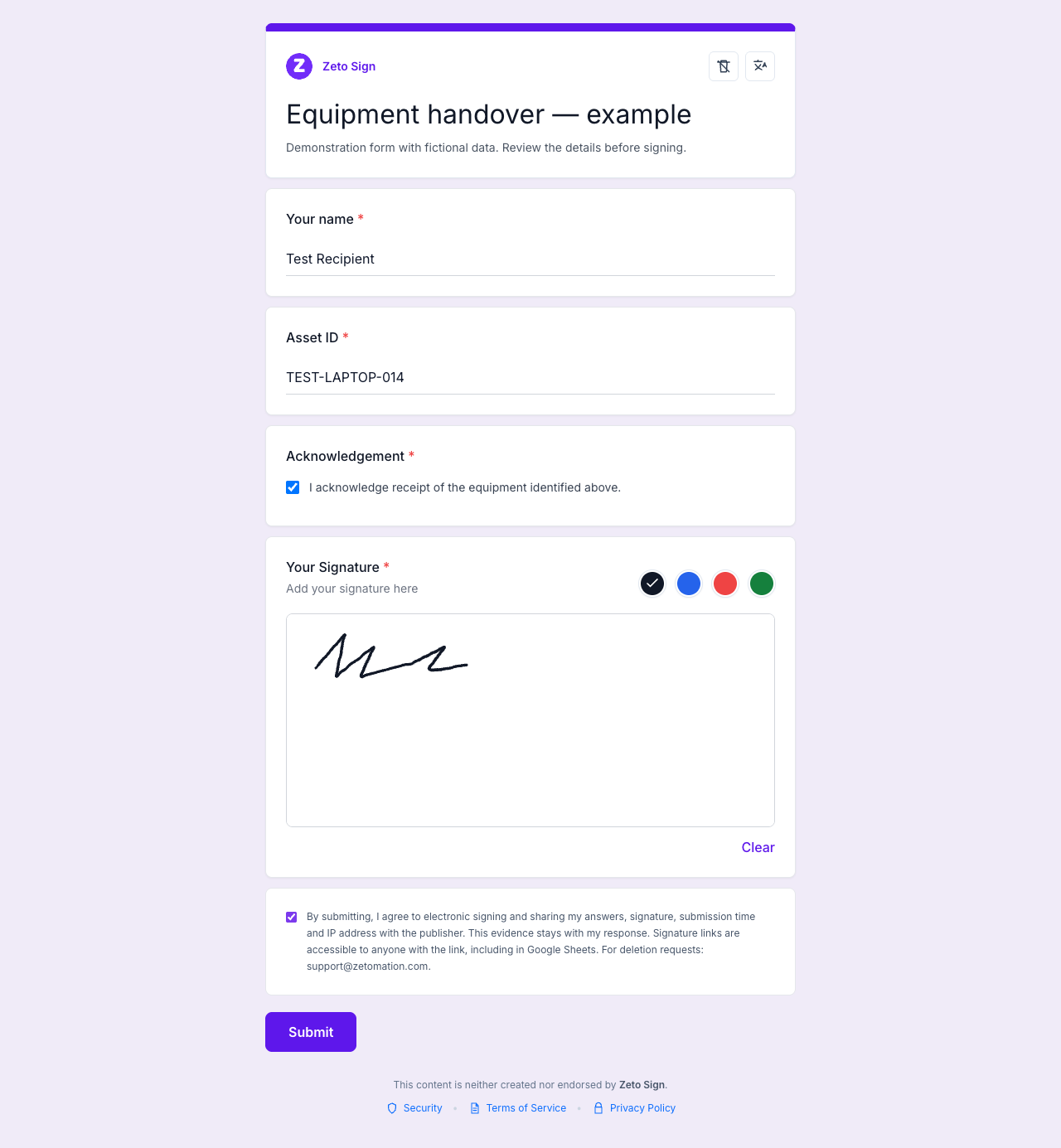
Test a handover before using it with your team
For a sample receipt, use Test Recipient, asset TEST-LAPTOP-014, a charger and sleeve, and “small mark on lid” as the condition note. Complete the hosted form on a phone and a desktop. Check that long identifiers remain readable and that the recipient can review their answers before submitting.
Find the completed response in the add-on’s See Responses view or the owner dashboard. Confirm that the equipment reference, exception notes, acknowledgement, and signature belong to the same submission.
If responses are forwarded to a linked Google Sheet, check the matching row too. ZetoSign stores the hosted response before attempting to forward it to Google Forms, so investigate an unmatched row without immediately collecting another signature. The response tracking guide gives the checks.
Keep the equipment record useful after issue
Maintain statuses such as issued, return requested, and returned in your equipment register. These are your team’s tracking fields; ZetoSign does not automatically manage asset inventory or return dates.
If someone reports a wrong serial number after submitting, retain a record of the correction and its reason. Avoid silently changing the original submitted values and losing the context of what the recipient acknowledged.
For a return, create a separate record with the same asset ID, the return date, accessories received, and the condition at return. A handover receipt describes the issue event and should not be reused as if it were a return inspection.
Restrict access to response records. Signature-image URLs can be opened by anyone who has the link, including when the containing spreadsheet is private.
Common questions
Can this template be used for laptops?
Yes. Include the asset ID, model, charger, and other accessories, along with condition notes and the handover date.
Does one form collect both the issuer’s and recipient’s signatures?
This workflow collects the respondent’s drawn signature. An issuer name field records an answer; it does not create a second signature or a multi-party approval process.
Can I collect a signature on a phone?
The hosted page supports drawing a signature on a phone. Test your own questions and acknowledgement on the device your recipients will use.
Can I download the signed receipt?
The owner dashboard offers response and evidence PDFs when a submission-time snapshot is available. The recipient does not gain access to that dashboard, and notification emails do not attach PDFs.
Copy the fields, adapt the acknowledgement to your process, and test one complete receipt. Explore ZetoSign to collect the signature alongside the handover details, or get help with setup.
Related guides
- How to Add a Signature to Google Forms With ZetoSign
- Collect Google Forms Signatures in Google Sheets
Written by the Zetomation team, which builds and maintains Zeto Sign and the Zetomation Google Workspace add-ons.